How to Repeat Text in Microsoft Word (5 Methods)
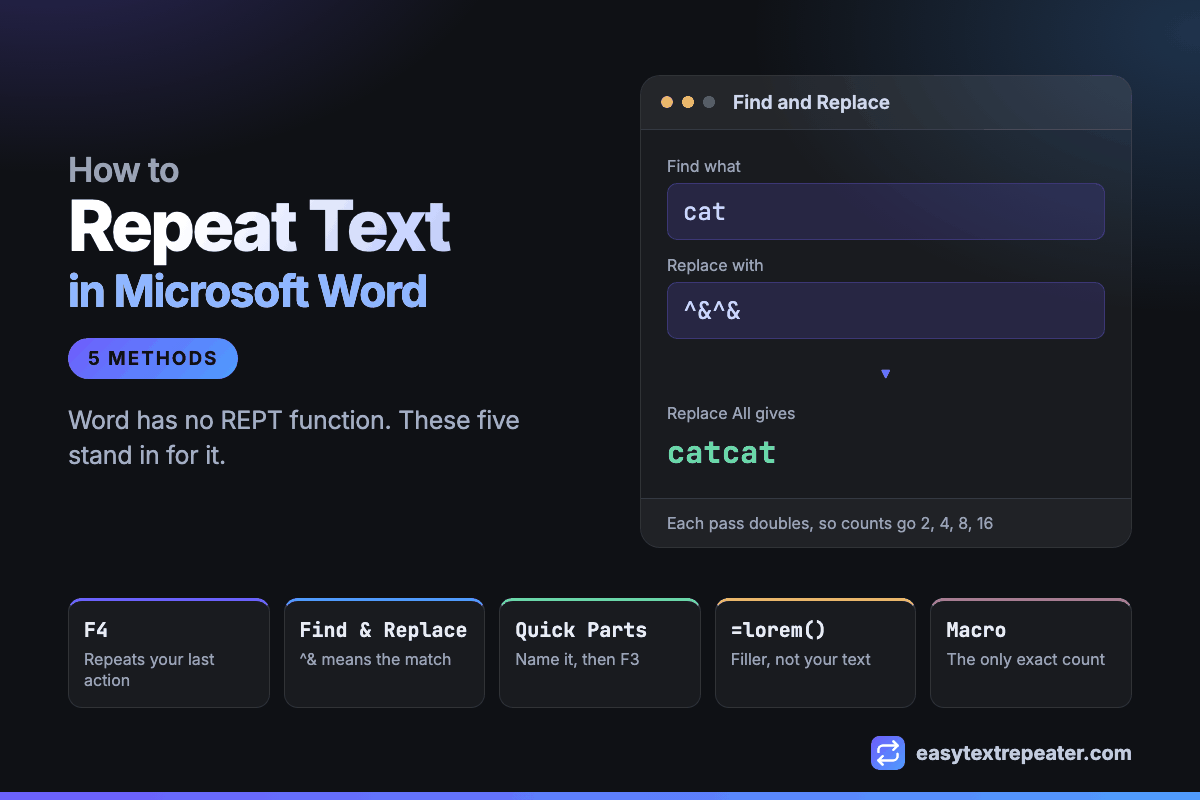
Microsoft Word has no REPT function. Excel and Google Sheets do, but Word is a document editor rather than a calculation engine, so repeating text there means using one of five other tools: F4 to repeat your last action, Find and Replace with ^& to duplicate every match at once, Quick Parts to store a block you reinsert by name, =lorem() or =rand() for placeholder paragraphs, or a short macro when you need an exact count.
Why there is no REPT in Word
Word does have a formula system — the field codes behind table calculations, written as { =SUM(ABOVE) } and similar. It handles arithmetic, but it has no string functions, so there is nothing to repeat text with. The spreadsheet approach, =REPT("ab", 3), is covered separately in the REPT function guide and has no Word equivalent.
That absence is why every method below is a workaround rather than a function.
Method 1: F4 repeats your last action
Word's Repeat command re-applies whatever you just did. Paste once, then press F4 — or Ctrl+Y, which does the same thing — and the paste happens again. Hold it down and copies accumulate.
- Copy the text you want repeated with
Ctrl+C. - Paste it once with
Ctrl+V. - Press
F4for each additional copy.
If F4 does nothing, the function keys are in media mode: press Fn, or the F Lock key if your keyboard has one, and try again.
This is the fastest method for a handful of copies and the worst for many, because there is no count — you are pressing a key once per copy and counting in your head.
Method 2: Find and Replace doubles every match
This is the method most people do not know about. In the Replace With box, ^& stands for whatever the search found. Putting it in twice writes the match out twice.
| Replace With | Result |
|---|---|
^&^& | catcat |
^& ^& | cat cat |
^&, ^& | cat, cat |
^&^p^& | cat and cat on separate lines |
Open Replace with Ctrl+H, put your text in Find What, put the pattern above in Replace With, and click Replace All. Every occurrence in the document is duplicated in one pass.
The catch is that each pass doubles what is there, so the counts available are 1, 2, 4, 8, 16 and so on. Three passes give eight copies. Getting to exactly ten means eight plus two more by hand, which is where this method stops being convenient.
Method 3: Quick Parts, for a block you reuse often
If the same block goes into documents repeatedly — a signature, a disclaimer, an address — store it once instead of retyping it.
- Select the text.
- Go to Insert, then Quick Parts, then Save Selection to Quick Part Gallery.
- Give it a short name and click OK.
- To insert it later, type the name and press
F3.
This repeats text across documents and across sessions rather than within one paragraph, which is a different job from the other four methods here.
Method 4: =lorem() and =rand() for placeholder paragraphs
Word will generate filler text on demand. Type either command on a line of its own and press Enter:
| Command | What it inserts |
|---|---|
=lorem() | Five paragraphs of Latin lorem ipsum |
=lorem(3,5) | Three paragraphs of five sentences each |
=rand() | Paragraphs of English text drawn from Word's help content |
=rand(3,5) | Three paragraphs of five sentences each |
=rand.old() | Repetitions of "The quick brown fox jumps over the lazy dog." |
Both take the same two arguments, paragraphs first and sentences second. They only work while AutoCorrect's "Replace text as you type" option is switched on, which it is by default.
One thing to be clear about: these do not repeat your text. They generate new filler, and the output differs each time you run them, so they are useful for filling a layout and useless for producing identical copies of a specific phrase. =rand.old() is the exception, and the sentence it repeats is not yours either.
Method 5: a macro, when the count has to be exact
For a specific number of copies, a few lines of VBA are the only native way. Press Alt+F11 to open the editor, insert a module, and paste:
Sub RepeatText()Dim i As IntegerFor i = 1 To 10Selection.TypeText "ab"Next iEnd Sub
Change 10 to the count you want and "ab" to your text, then run it with F5. To put something between the copies, append it to the text itself — "ab, " — and delete the trailing separator afterwards.
Macros are disabled by default in documents from outside your organisation, and saving a file that contains one means using the .docm format.
Which method fits which job
| Method | Best for | Exact count? | Separator control |
|---|---|---|---|
| F4 repeat | Two to ten copies | By counting keypresses | Whatever you copied |
| Find and Replace | Duplicating every match at once | Powers of two only | Yes, in the pattern |
| Quick Parts | Reusing a block across documents | Not applicable | Not applicable |
| =lorem / =rand | Filling a layout with placeholder text | By paragraph, not by copy | No |
| Macro | An exact, large count | Yes | Yes, with a trailing one to remove |
When a text repeater is quicker
Every method above is a workaround for a missing function, and each one shows it. F4 has no count. Find and Replace only doubles. The placeholder commands generate different text rather than repeating yours. The macro works but means opening a code editor and saving in a different file format.
If what you need is 137 copies of a phrase separated by commas, pasting the finished text into Word is faster than any of them — and if you are producing a string of a known length for a form or a field, the boundary values worth using are in testing character limits with repeated text.
Want the copies with an exact count and a separator? Type the text and the number, choose a separator, and paste the result straight into your document.
Frequently asked questions
Does Word have a REPT function like Excel?
No. Word's field codes handle arithmetic but include no string functions, so there is no equivalent of =REPT("ab", 3). Repeating text in Word means using the F4 repeat shortcut, Find and Replace with ^&, Quick Parts, the placeholder commands, or a macro.
How do you repeat text in Word without copying and pasting each time?
Paste the text once, then press F4 to repeat that paste. Ctrl+Y does the same thing. If the key does nothing, press Fn or F Lock first, because the function keys are in media mode.
What does ^& mean in Word Find and Replace?
In the Replace With box, ^& stands for the text the search matched. Entering it twice as ^&^& replaces every match with two copies of itself, so one pass over the document doubles each occurrence.
How do you insert placeholder text in Word?
Type =lorem() for Latin lorem ipsum or =rand() for English filler on a line of its own and press Enter. Both accept two numbers, paragraphs then sentences, so =lorem(3,5) inserts three paragraphs of five sentences each.
Why does =rand() not repeat the same text each time?
=rand() and =lorem() generate placeholder content rather than repeating text you supply, and the output differs on each run. To produce identical copies of a specific phrase, use F4, Find and Replace, or a macro instead.
How do you repeat text an exact number of times in Word?
A macro is the only native way to specify a count: a For loop from 1 to your number calling Selection.TypeText. The alternative is to generate the repeated text outside Word and paste it in, which needs no macro and no .docm file.